
Zoom integration
Connect Zoom to Connectify
The Zoom integration on Connectify creates and updates meetings and registers invitees from Shopify and 200+ connected apps, with no code. This page is the guide: add the app to your Zoom account, build a first workflow, check each run in Logs, and remove the app when you no longer need it.


What you can do
7 Zoom actions, straight from the app
Each item is a real step in the Connectify builder. Fields are filled by typing @ to insert data from the trigger or an earlier step.
Zoom steps run inside a workflow that starts somewhere else: a Shopify event (order created, customer created and so on), a booking, a form answer, or an event in any other connected app. There is no Zoom trigger.
Meetings
- Create MeetingCreates a meeting under the connected user. Topic is required; leave Start Time empty for an instant meeting. Type 3 (recurring with no fixed time) ignores Start Time. Returns the meeting id, join_url and the host start_url. Optional settings: Meeting Type, Agenda, Host Video, Participant Video, Join Before Host, Mute Upon Entry, Approval Type, Waiting Room.
- Update MeetingChanges an existing meeting. Pick an upcoming meeting as the Meeting Id. Topic is required and is always written; fill only the other fields you want to change. For a recurring meeting the change applies to the whole series. Same fields as Create Meeting.
- Get MeetingFetches one meeting by Meeting Id: topic, type, start_time, agenda, settings, join_url and the host start_url, for use in later steps.
- List MeetingsLists the connected user’s meetings, the first page of up to 30, with each meeting’s id, topic, type and start_time.
- List Upcoming MeetingsLists only scheduled meetings that have not ended yet, the first page of up to 30, with id, topic and start_time. Use it to feed a Meeting Id to an update or registrant step.
Registrants
- Create Meeting RegistrantRegisters an invitee for an upcoming meeting. The meeting must have registration turned on, which means an Approval Type of "Automatically approve" or "Manually approve", not "No registration required"; otherwise the call fails. Email and First Name are required; approved registrants get a unique join_url. Optional: Auto Approval.
Account
- Get Zoom ProfileNo input. Returns the connected user’s id, email, first and last name, account_id and plan type.
Step by step
Add Zoom to Connectify
Four steps in Connectify. You approve the access on Zoom’s own consent screen.
Prerequisites
- A Connectify account. Sign in or register at https://app.connectify.co/
- A Zoom account. Creating, updating and listing meetings works on a free Basic account. Registering invitees needs a meeting with registration turned on, which Zoom offers to Licensed (paid) users only.
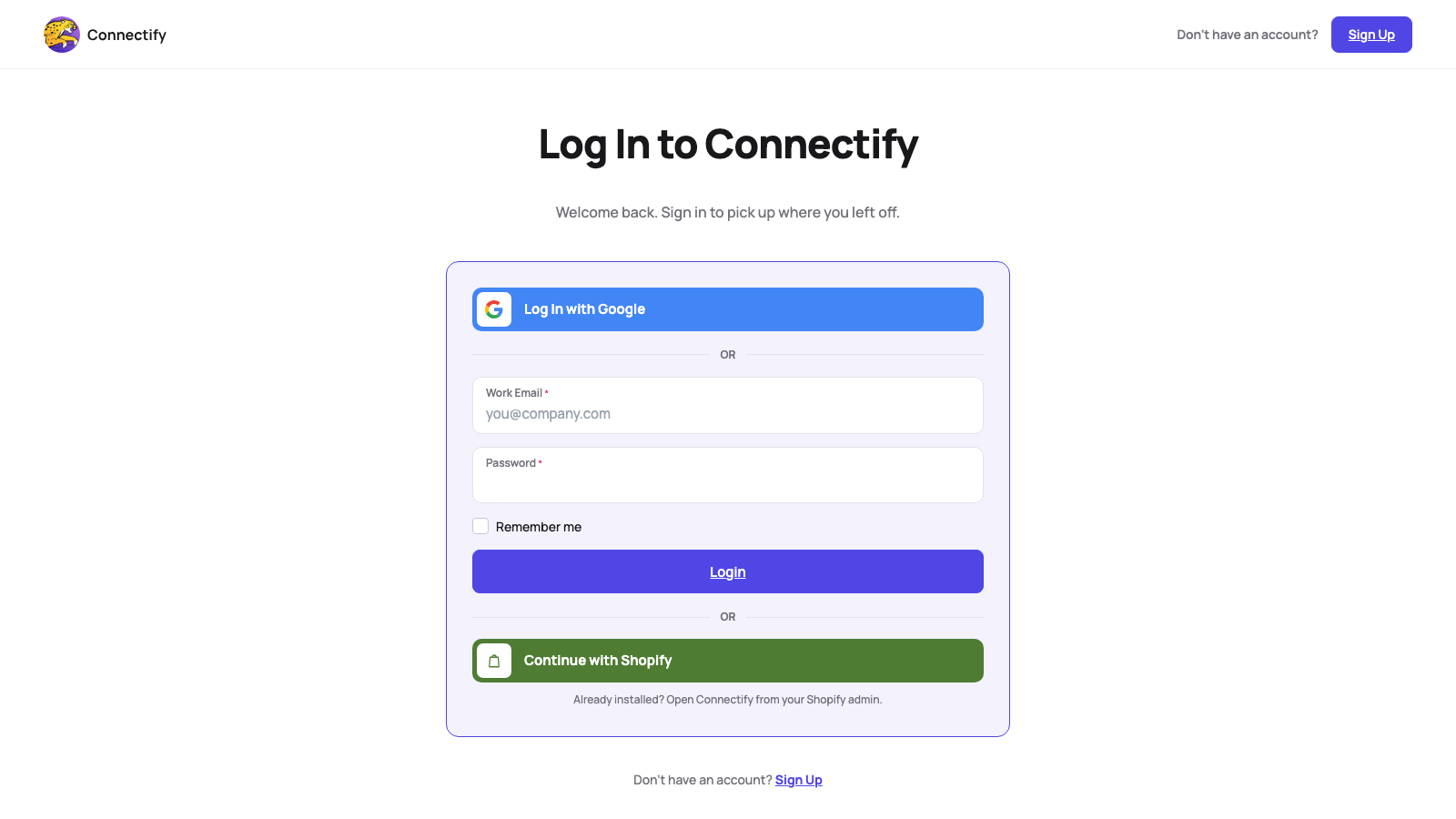
- Sign in to ConnectifySign in at https://app.connectify.co/
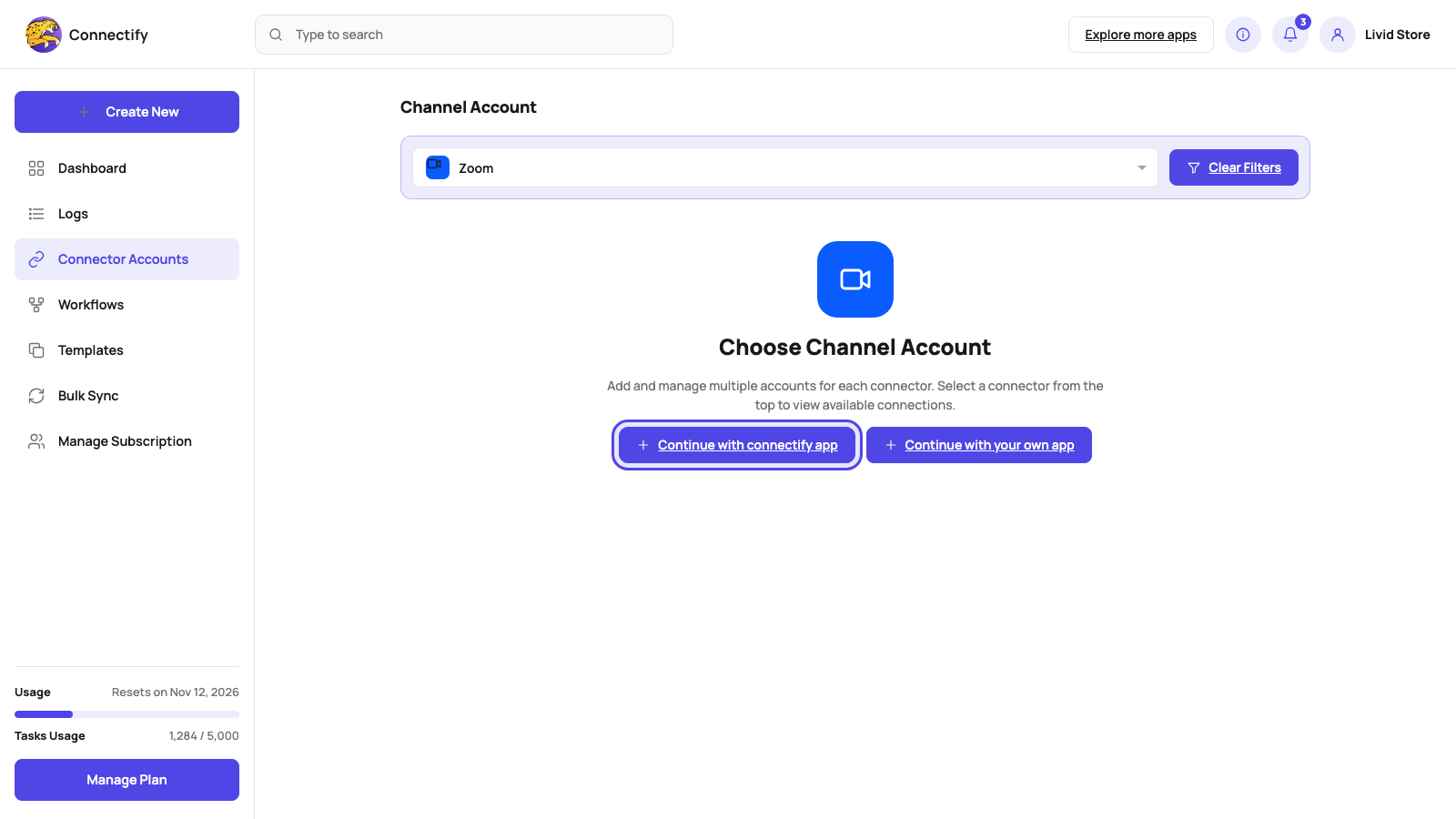
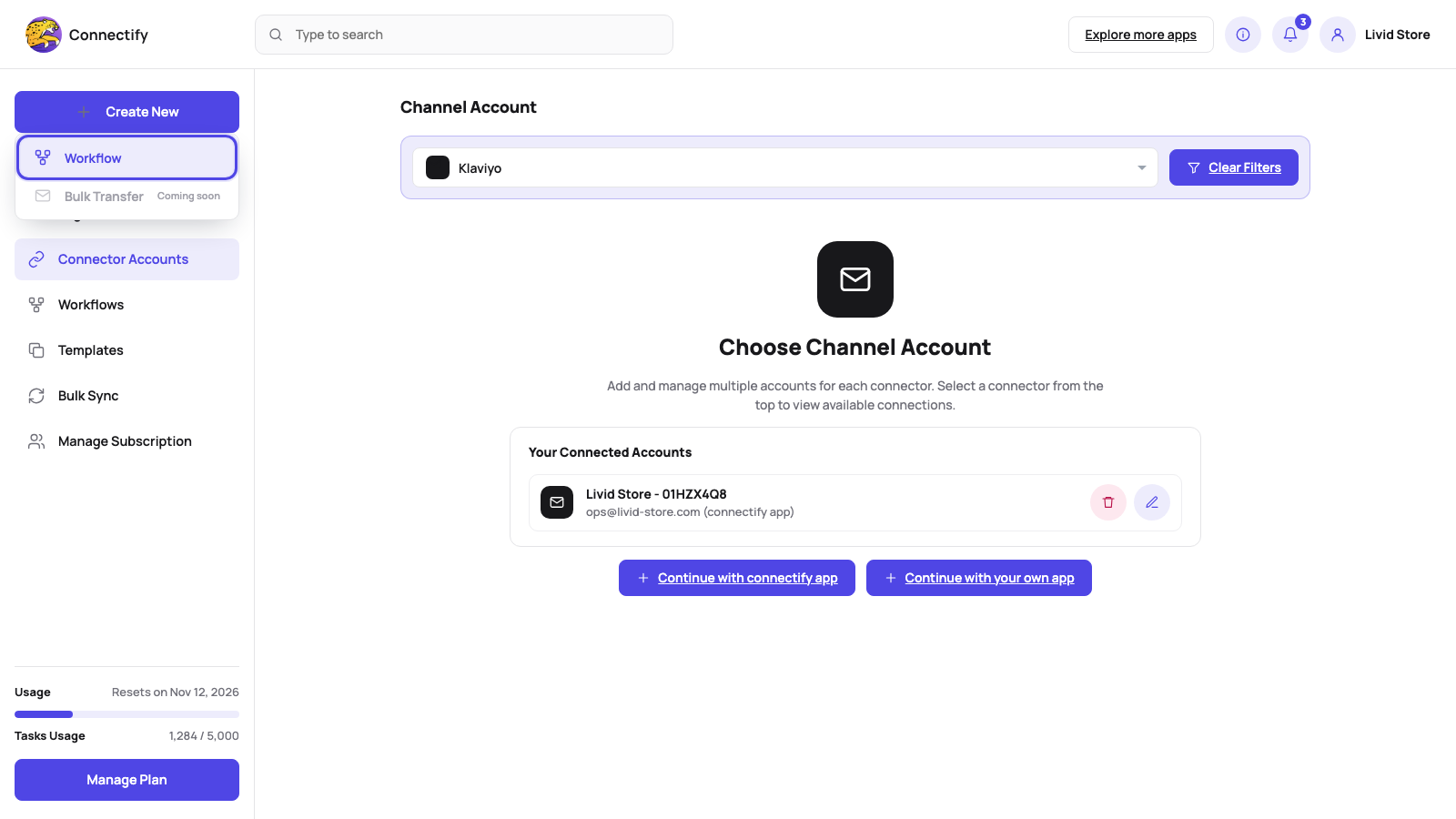
- Open Connector AccountsIn the left sidebar click "Connector Accounts", then choose Zoom in the channel dropdown at the top of the page. The Zoom card appears.
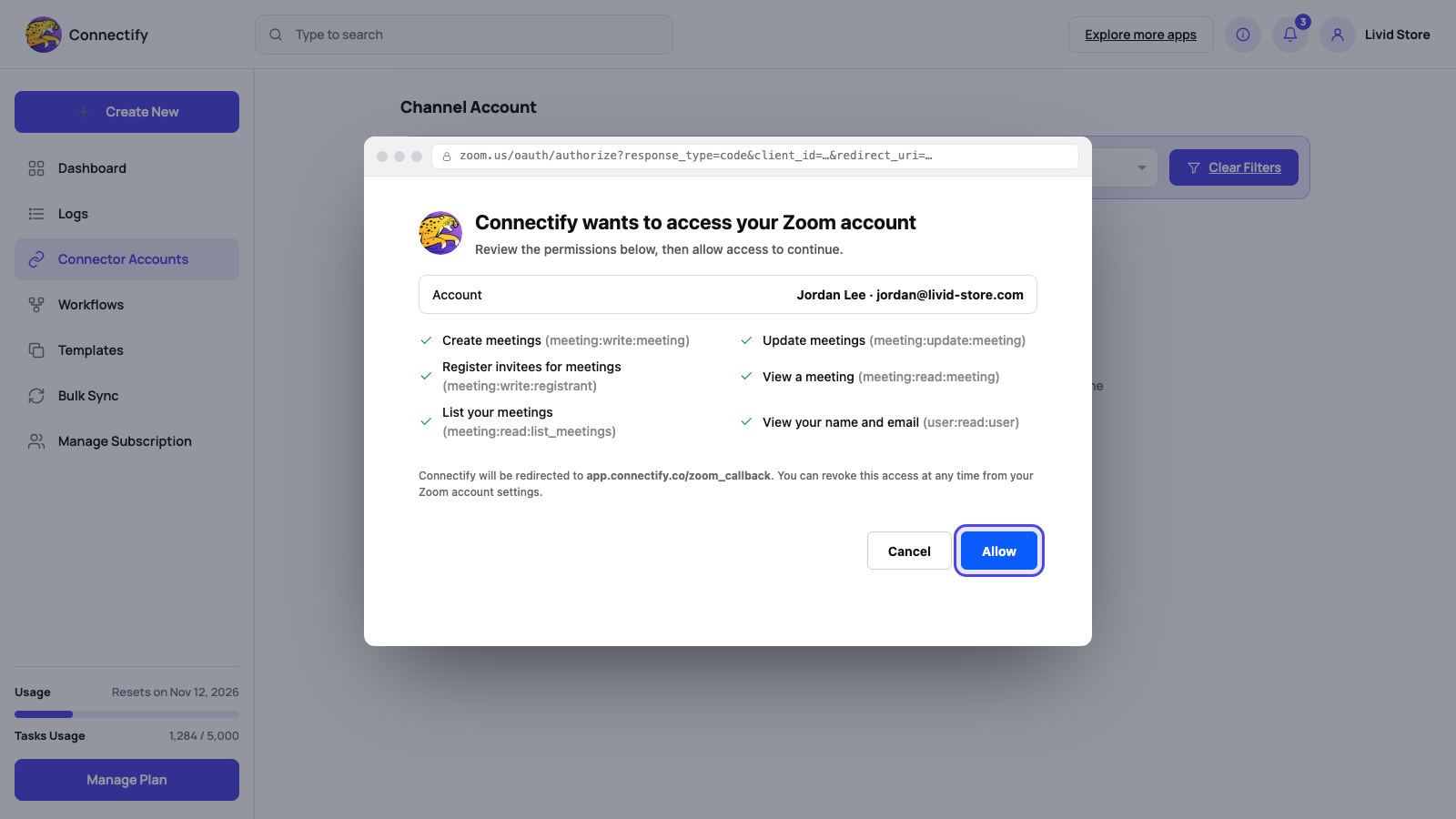
- Continue with the Connectify appClick "Continue with connectify app" (or "Continue with your own app" to connect through your own Zoom app). Zoom’s consent screen opens; review the permissions and click "Allow".
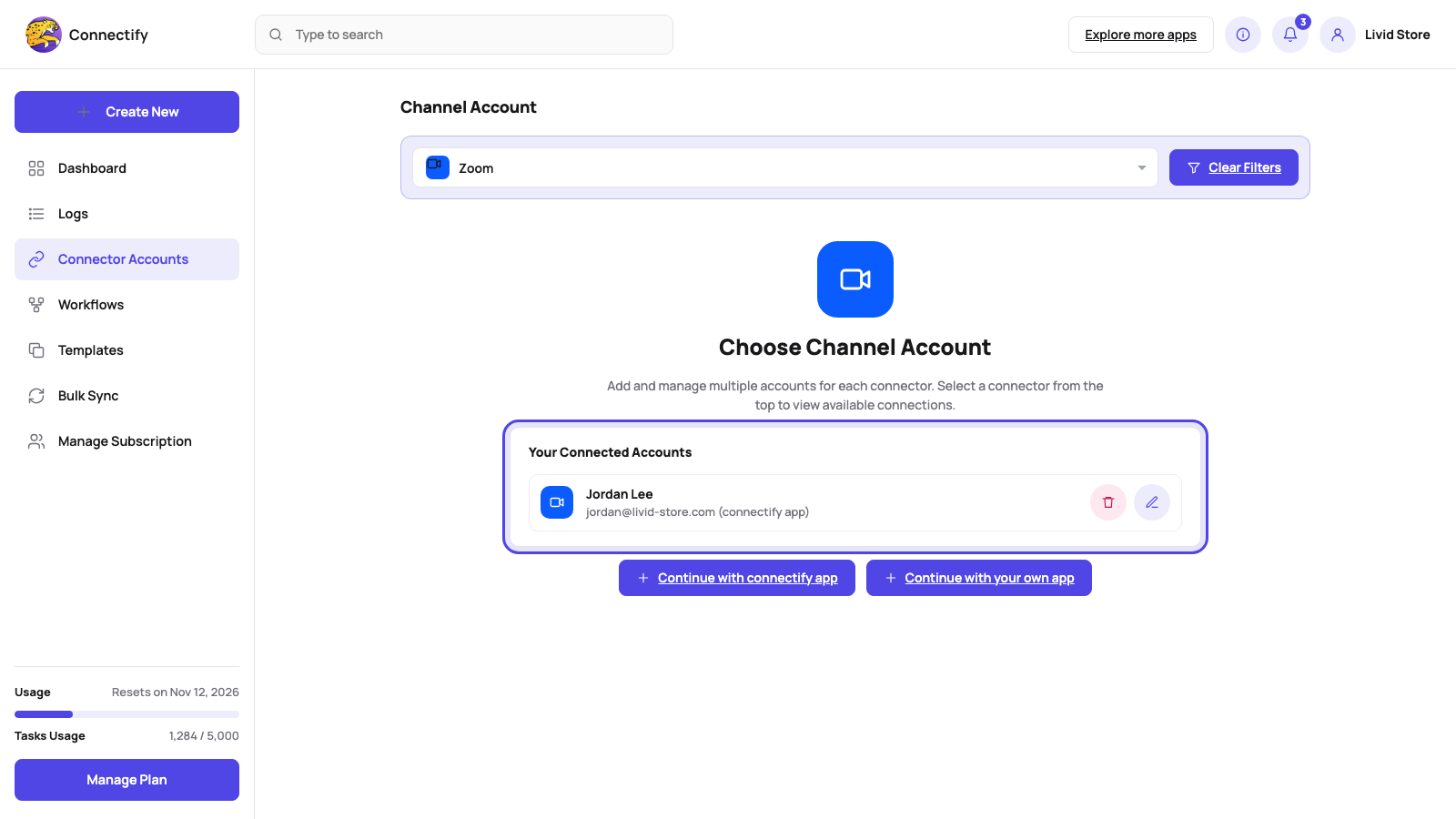
- See the connected accountThe window closes and the account appears under "Your Connected Accounts". Connectify refreshes the access token on its own every hour, so you do not need to sign in again.
Step by step
Build your first workflow
A Shopify order that creates a Zoom meeting for the customer, from a blank canvas to a live run.
- Create a workflowClick the "+ Create New" button at the top of the sidebar and choose "Workflow".
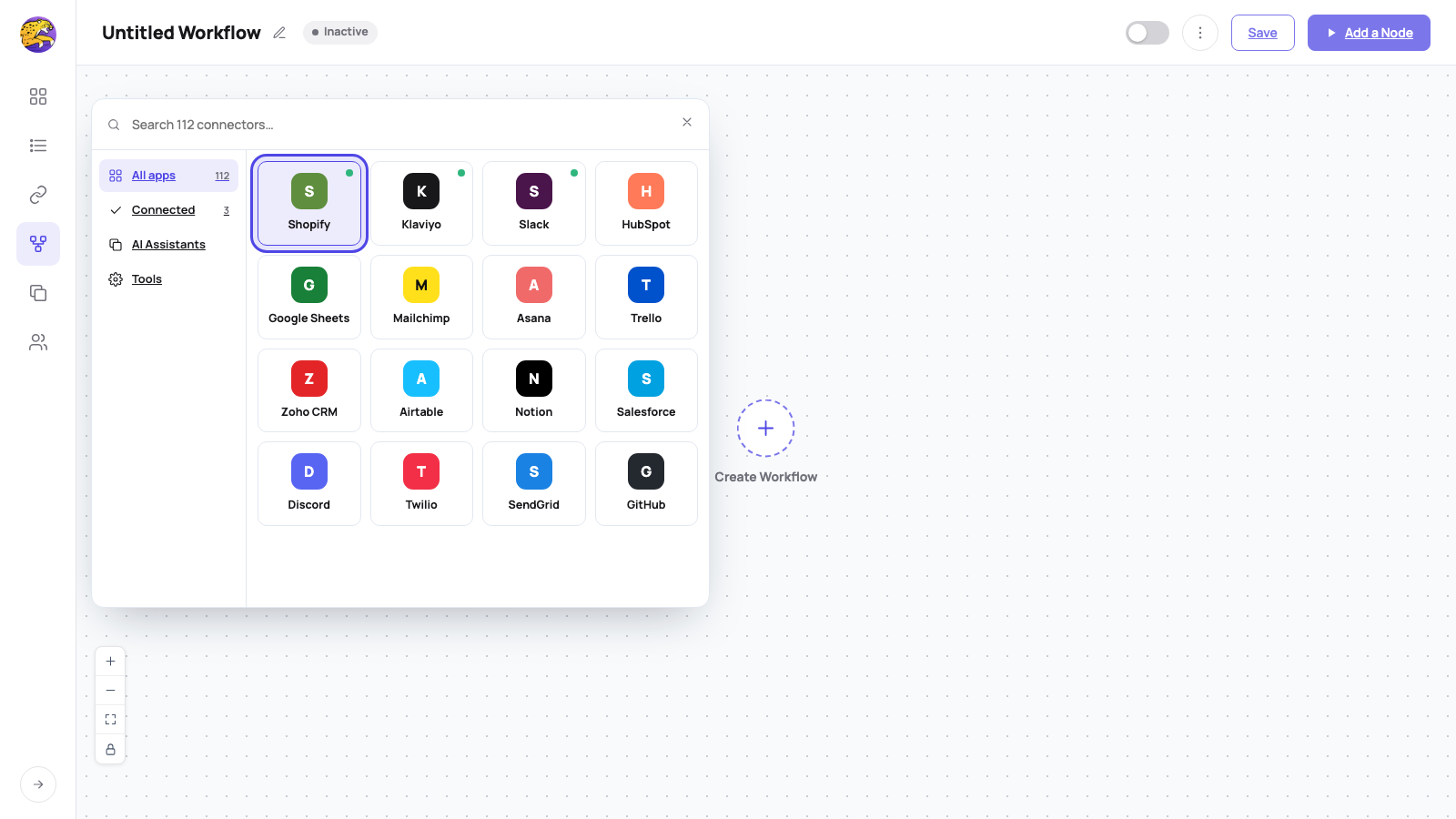
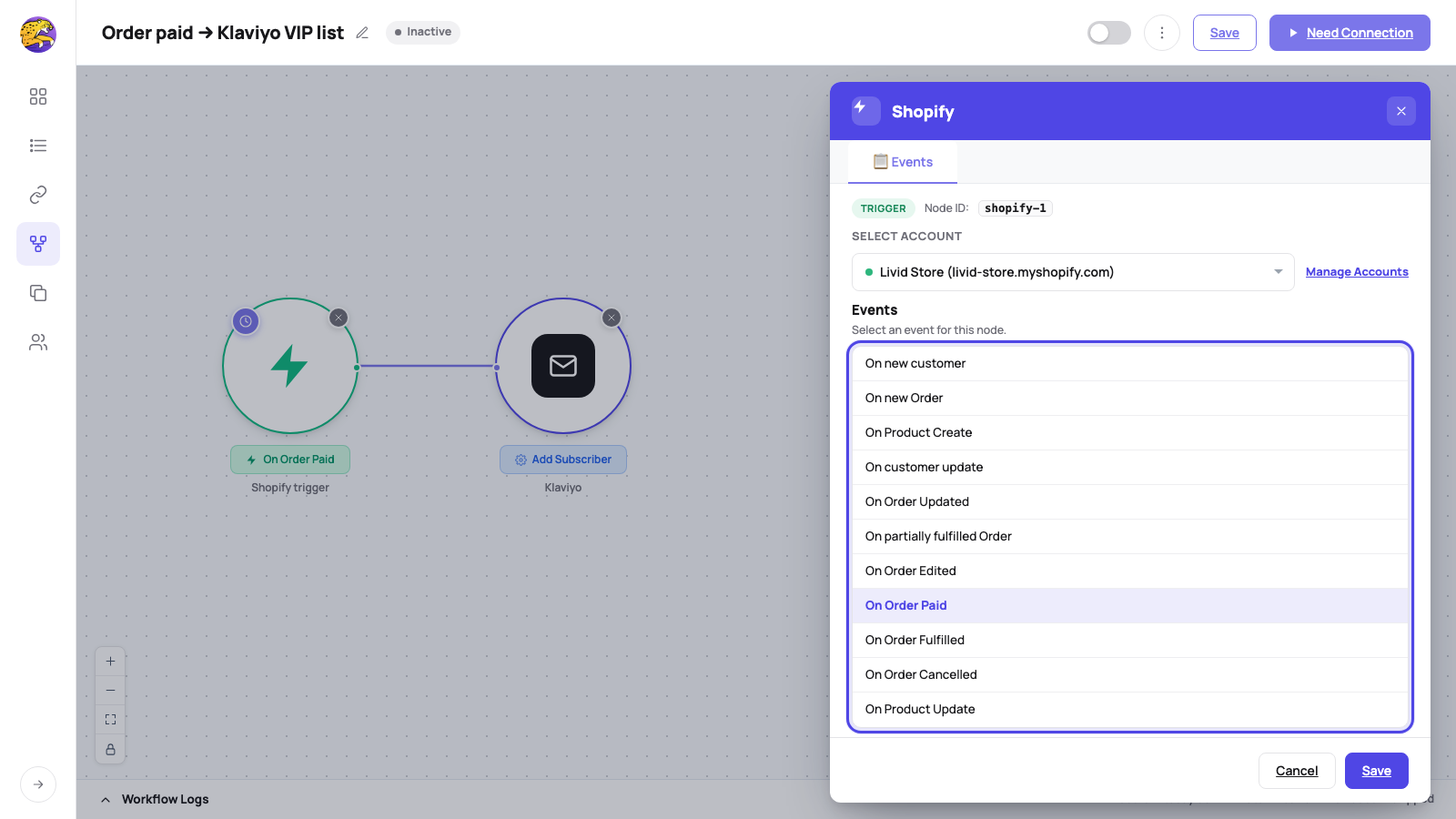
- Pick the triggerOpen the NODES panel on the left, or click "Add a Node", and use "Search connectors..." to click the app that starts the workflow (for example Shopify). The first node is always the trigger; pick its event, for example "On new Order".
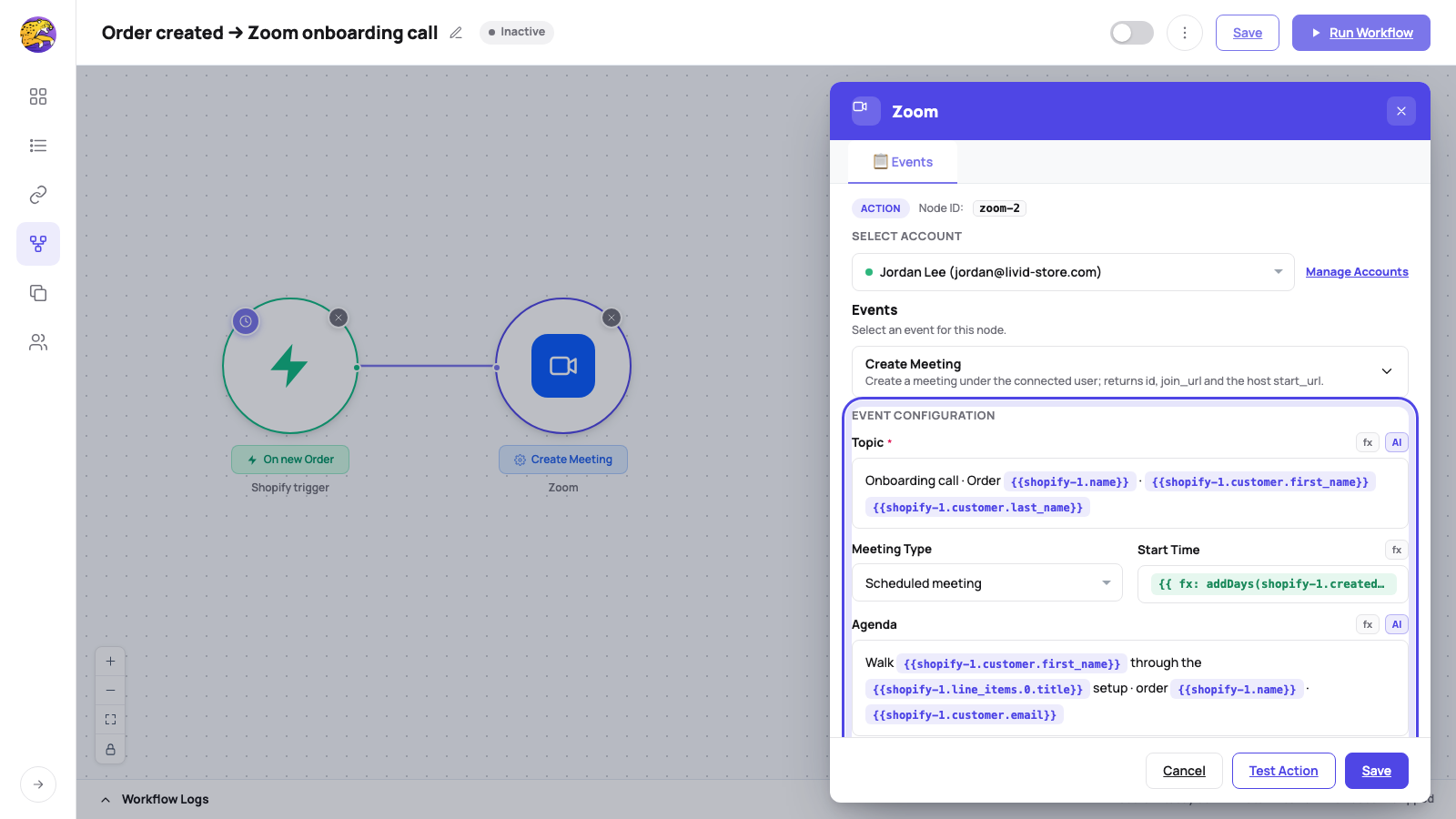
- Add the Zoom actionClick Zoom in the NODES panel to add an action. Under "Select Account" choose the Zoom account, under "Events" choose "Create Meeting", type the Topic and map Start Time, Agenda and the other fields from the trigger with the @ variable picker.
- Save and activateGive the workflow a title, click Save, switch the header toggle to Active.
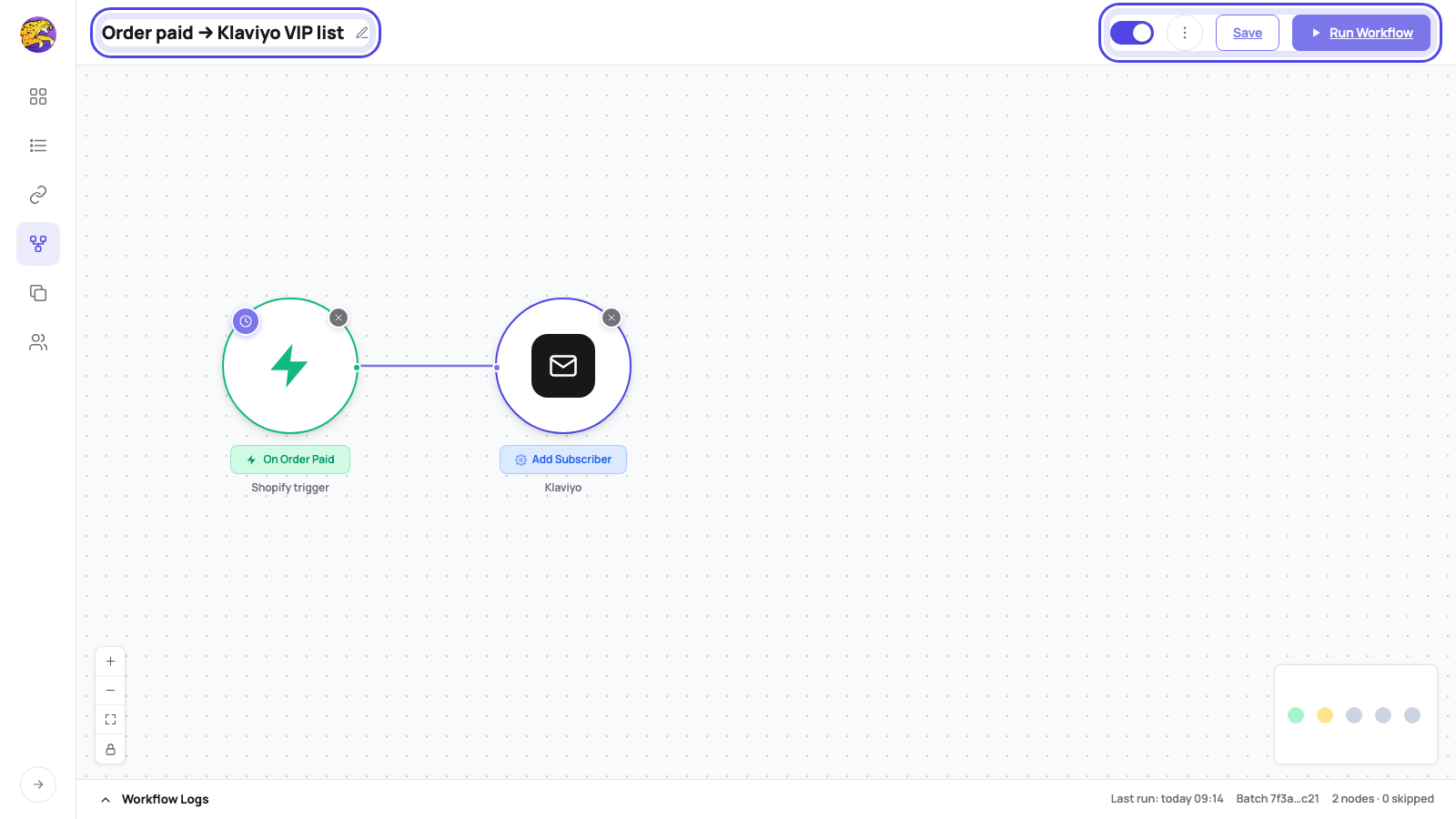
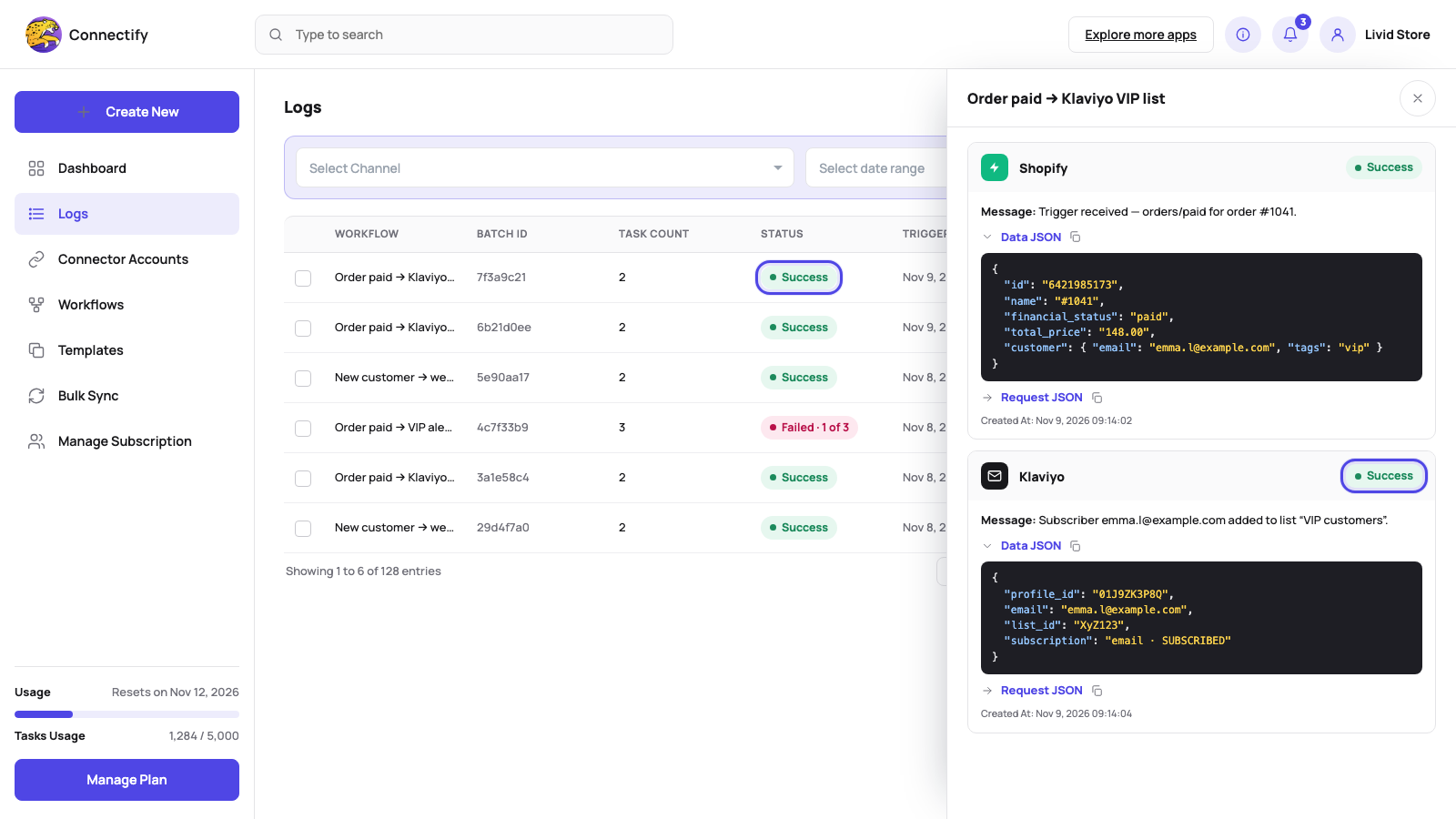
- Run it and check LogsFire the trigger (place a test order). The meeting appears in your Zoom account within seconds, and its join_url and start_url are in the step output; every run is listed under "Logs".
Permissions and data
What Connectify asks Zoom for, and why
Only the access the actions above need. You approve it on the provider's own page when you connect.
- Connectify stores the OAuth tokens and the connected user’s display name and email, encrypted at rest, and decrypts the tokens only while a Zoom step runs.
- Meeting data returned by Zoom (ids, topics, times, join and start links) is kept in the run log for your plan’s retention period, then deleted automatically.
- Connectify creates, updates and reads only the meetings and registrants your workflow steps name, with the fields you map.
- When you delete the account in Connectify, its token is revoked at Zoom and the stored data goes with it. When you remove the Connectify app inside Zoom, Zoom notifies Connectify, which clears the tokens, name and email and confirms this to Zoom through its Data Compliance API. A connection made through your own Zoom app is not covered by that notification; delete it in Connectify.
Full details in the privacy policy.
- meeting:write:meeting
- Create Meeting.
- meeting:update:meeting
- Update Meeting.
- meeting:write:registrant
- Create Meeting Registrant.
- meeting:read:meeting
- Get Meeting.
- meeting:read:list_meetings
- List Meetings and List Upcoming Meetings.
- user:read:user
- Get Zoom Profile, and the name and email that label the connected account.
Disconnect
Remove Zoom
In Connectify: go to Connector Accounts > Zoom and click the trash icon next to the account. Connectify revokes its token at Zoom and deletes the account; for a Connectify-app connection the app then disappears from the installed apps in your Zoom account. This is the way to remove a connection made through your own Zoom app.
In Zoom: open the Zoom App Marketplace, go to Manage > Added Apps and click "Remove" next to Connectify. Zoom notifies Connectify, which clears the stored tokens and your name and email from every account connected through the Connectify app and marks them as needing reconnection. Workflows that use them pause until you connect Zoom again. Connections made through your own Zoom app are not affected by this; remove them in Connectify.
Common problems
Troubleshooting
The registrant step fails
Create Meeting Registrant only works for a meeting that has registration turned on, which needs a Licensed Zoom user. Open the meeting in Zoom and turn on registration, or create it from Connectify with Approval Type set to "Automatically approve" or "Manually approve" (not "No registration required"), then run the step again.
The account shows "reconnect"
Zoom has withdrawn Connectify’s access, either because the app was removed in the Zoom App Marketplace or because the refresh token expired after 90 days without use. Open Connector Accounts > Zoom, click the account and connect it again. Workflows resume on their next run.
Update Meeting changed more, or less, than expected
Topic is required on the step and is always written, so map it to the current topic if you do not want it to change. For a recurring meeting the change applies to the whole series; the step has no occurrence control, so edit a single occurrence in Zoom.
Still stuck? Contact support.
FAQ
Zoom questions
Is there a Zoom trigger?
Not yet. Workflows with Zoom start from a Shopify event, a booking, a form answer or any other connected app, and then use Zoom actions.
Can I use my own Zoom app?
Yes. On the Zoom card choose to use your own app and enter its client ID and secret; the connection then runs under your app with the same scopes.
Who is the host of a created meeting?
The connected Zoom user. The step returns the host start_url for them and the join_url for everyone else.
What happens to my data when I remove the app?
For a connection made through the Connectify app, Zoom tells Connectify, which clears the tokens and your name and email straight away and confirms it to Zoom through its Data Compliance API. For a connection through your own Zoom app, delete the account in Connectify. Run logs expire on their normal schedule either way.
Stuck on a Zoom step? Write to support@connectify.co or report an issue. Include the workflow name and the run from Logs.



Connect Zoom in minutes.
Free plan, no card, 200+ apps. Describe the workflow to Copilot or build it by hand.