
Klaviyo integration
Connect Klaviyo to Connectify
The Klaviyo integration on Connectify automates Klaviyo lists and profiles from Shopify and 200+ connected apps, with no code. This page is the guide: connect your account, build a first workflow and check each run in Logs.


What you can do
9 Klaviyo actions, straight from the app
Each item is a real step in the Connectify builder. Fields are filled by typing @ to insert data from the trigger or an earlier step.
Klaviyo steps run inside a workflow that starts somewhere else: any Shopify event (order created, customer created and so on) or an event in any other connected app. There is no Klaviyo trigger.
Subscribers
- Add SubscriberSaves the profile by email and subscribes it to email marketing, adding it to a list when you pick one. New or existing profiles are updated. First name, last name, organization, title and phone number are optional.
- Remove SubscriberUnsubscribes a profile by email, from one list when you pick one.
Lists
- Create ListCreates a list and returns its id for later steps.
- Update ListRenames an existing list.
- Get ListFetches one list by id with its name and details.
- Get Profiles from ListLists the profiles that belong to a list, page by page.
Profiles
- Get ProfileFetches one profile by id: email, name, phone and properties.
Account
- Get TagsLists every tag in the account with its id and name.
- Get CampaignsLists campaigns for one channel at a time: Email, SMS or Mobile Push.
Step by step
Connect Klaviyo
Four steps in Connectify. You approve the access on Klaviyo’s own page.
Prerequisites
- A Connectify account. Sign in or register at https://app.connectify.co/
- A Klaviyo account where you are Owner, Admin or Manager.
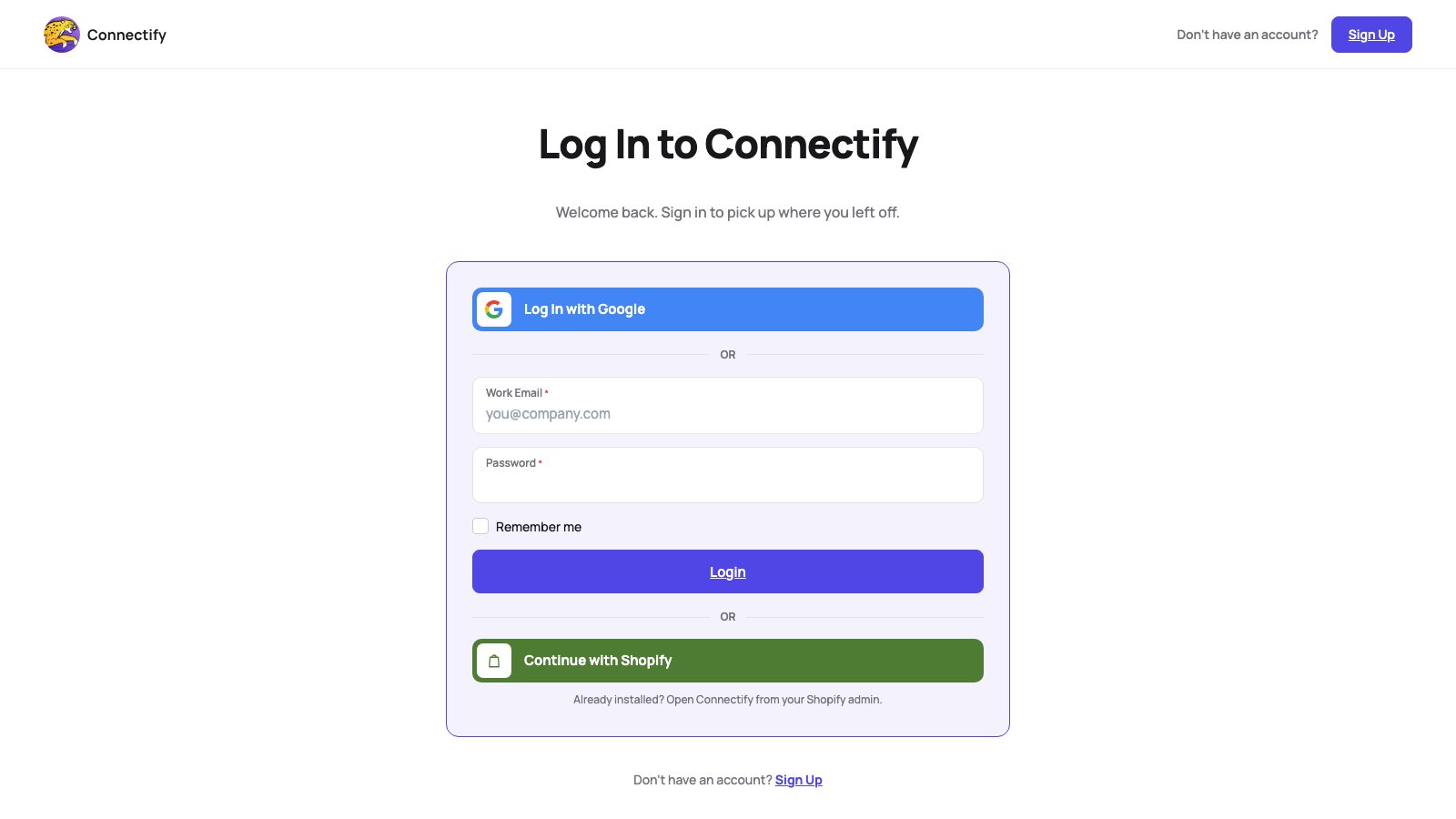
- Sign in to ConnectifySign in at https://app.connectify.co/
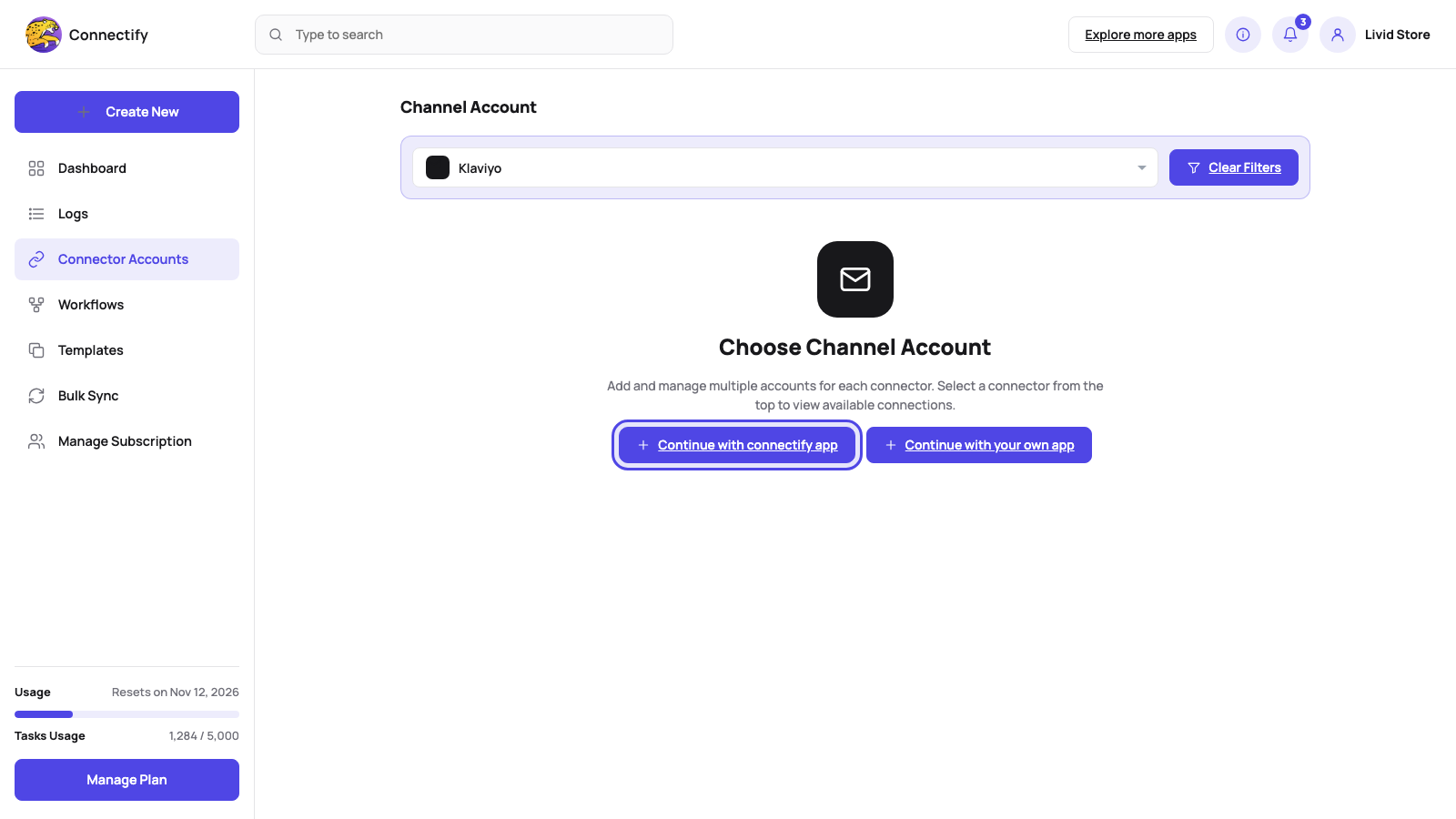
- Open Connector AccountsIn the left sidebar click "Connector Accounts", then choose Klaviyo in the channel dropdown at the top of the page.
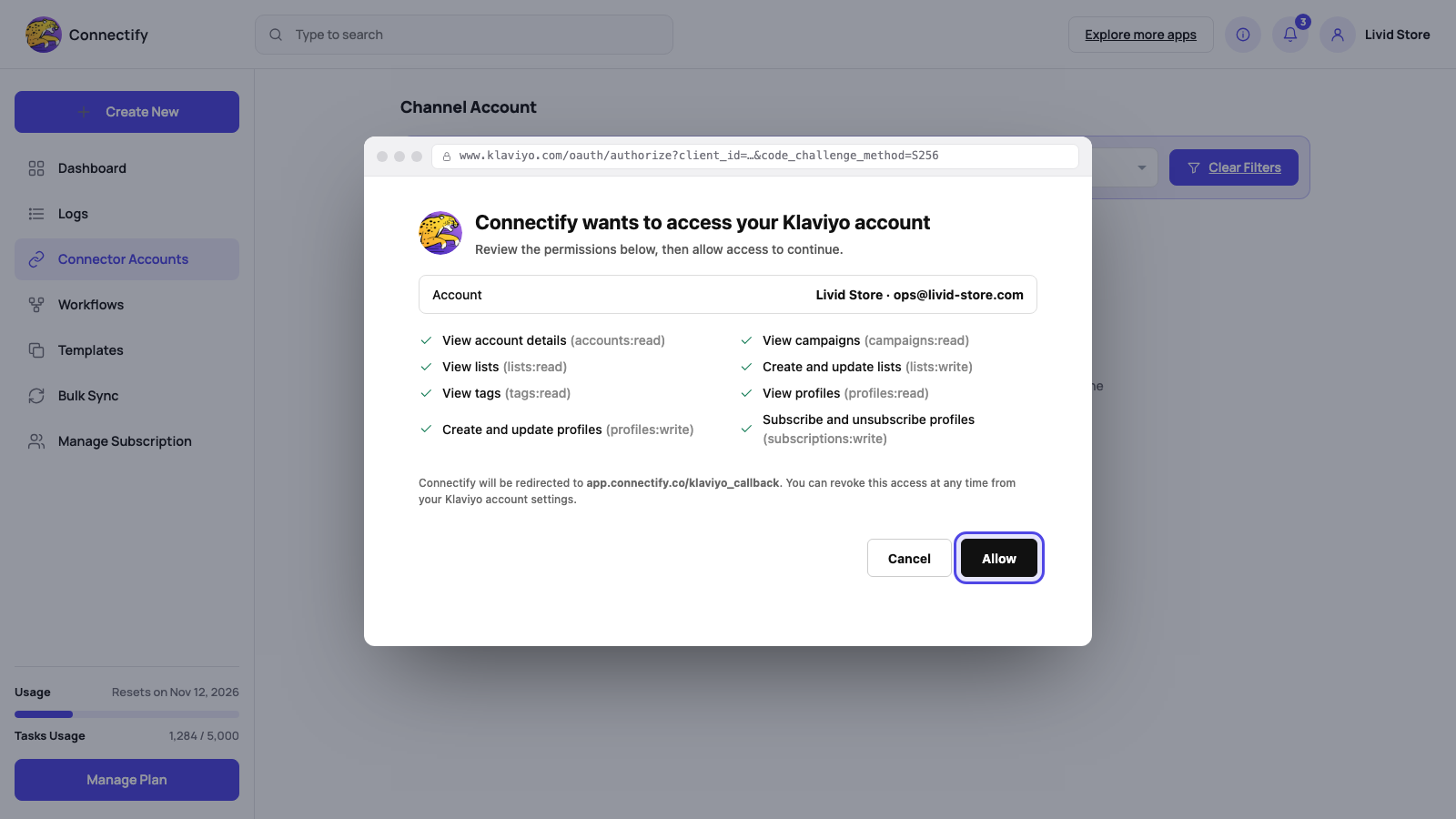
- Connect a new accountClick "Connect a new account" (if an account is already connected the button reads "Continue with connectify app"). Klaviyo’s authorization screen opens; review the permissions and click "Allow".
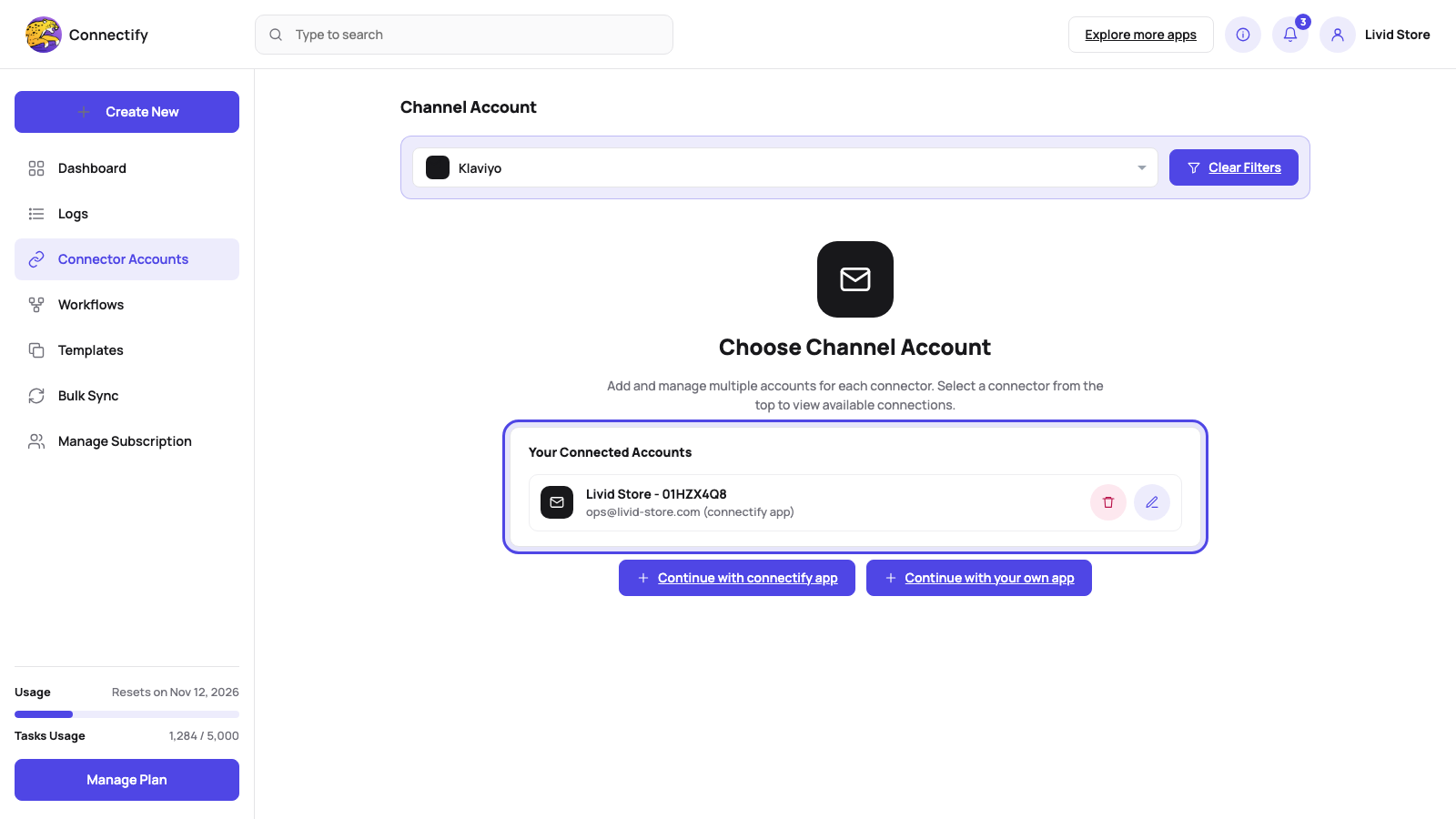
- See the connected accountThe window closes and the account appears under "Your Connected Accounts".
Step by step
Build your first workflow
A Shopify order that adds the customer to a Klaviyo list, from a blank canvas to a live run.
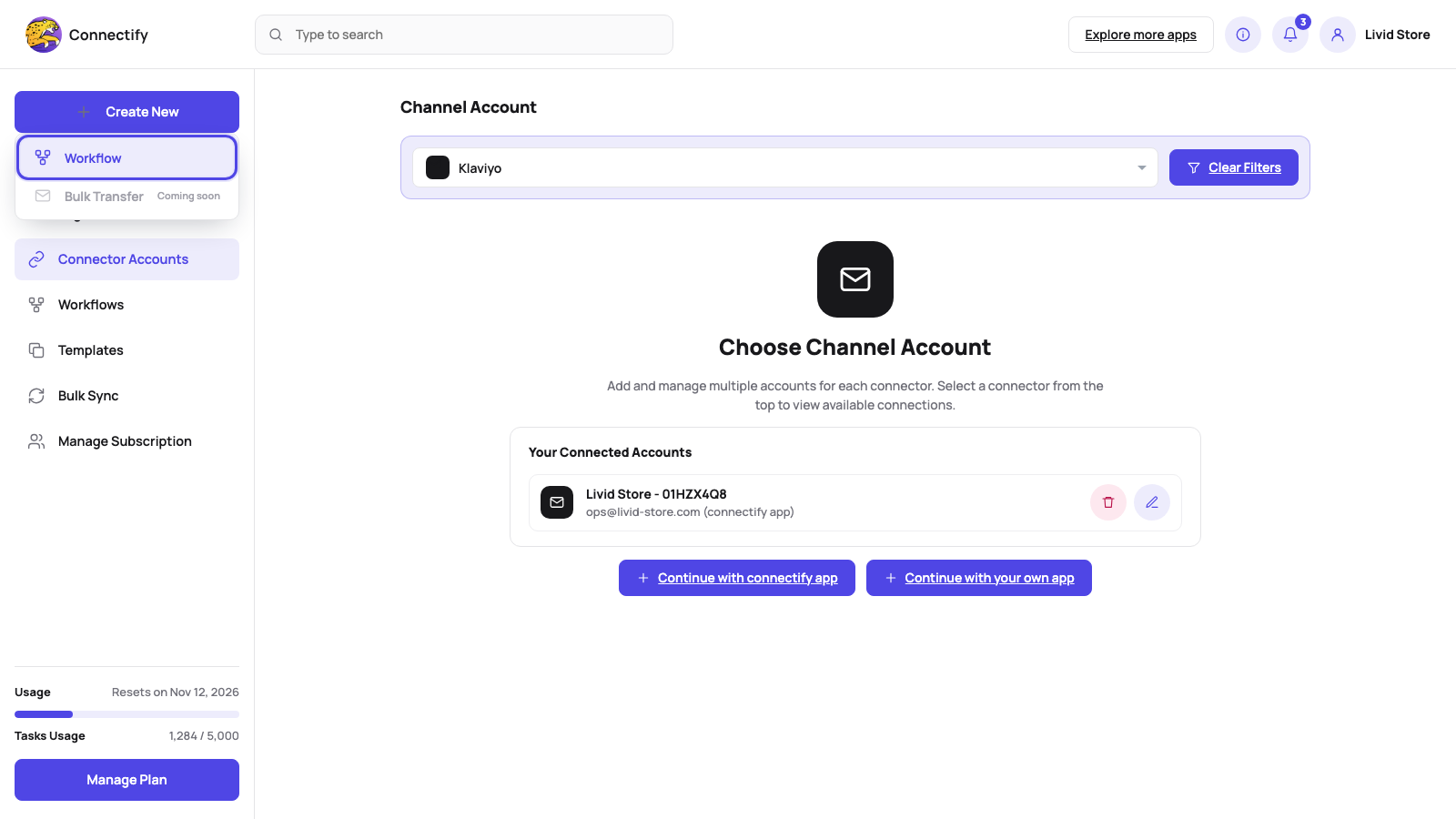
- Create a workflowClick the "+ Create New" button at the top of the sidebar and choose "Workflow".
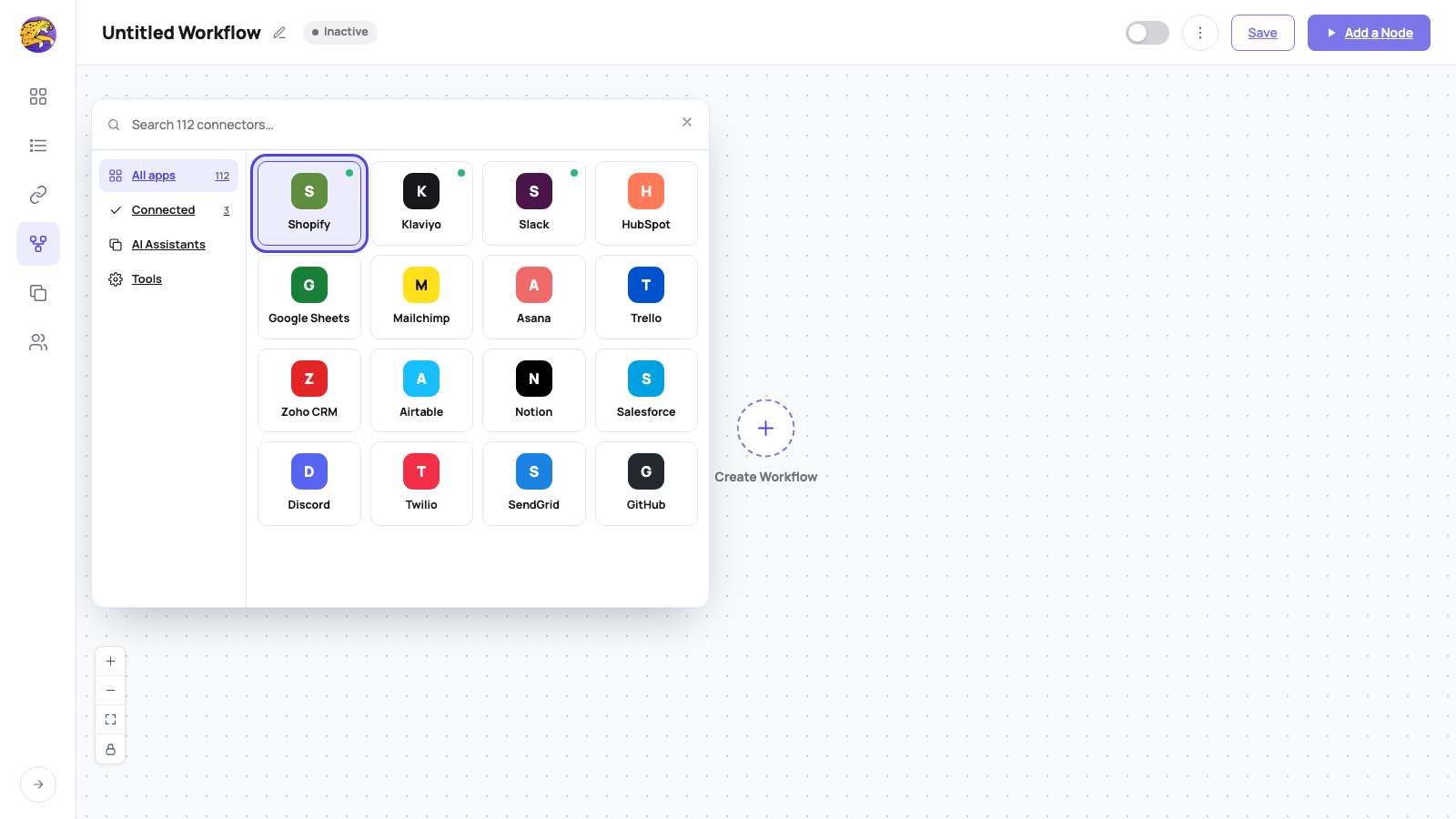
- Pick the triggerOpen the NODES panel on the left, or click "Add a Node", and use "Search connectors..." to click the app that starts the workflow (for example Shopify). The first node is always the trigger; pick its event.
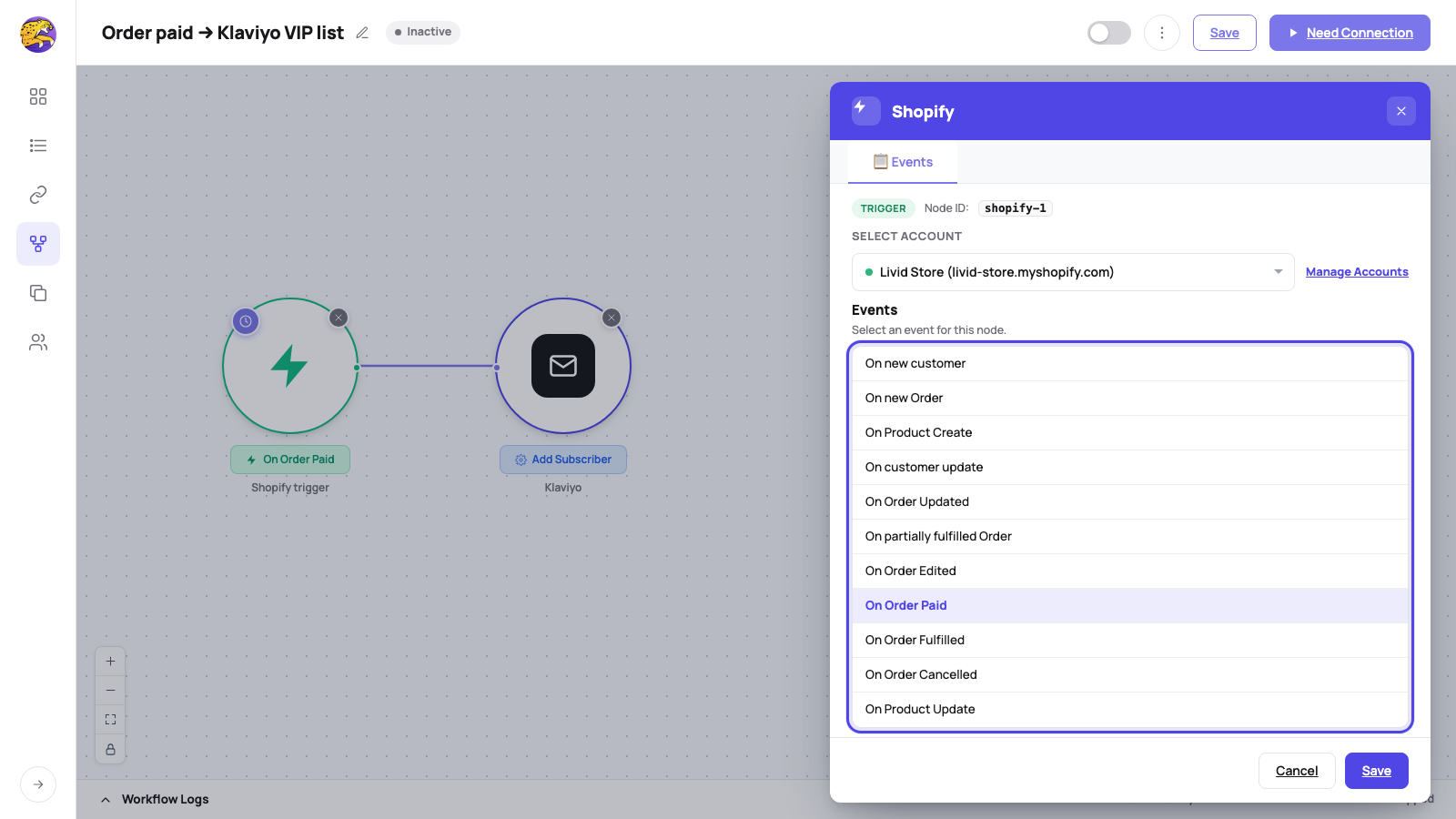
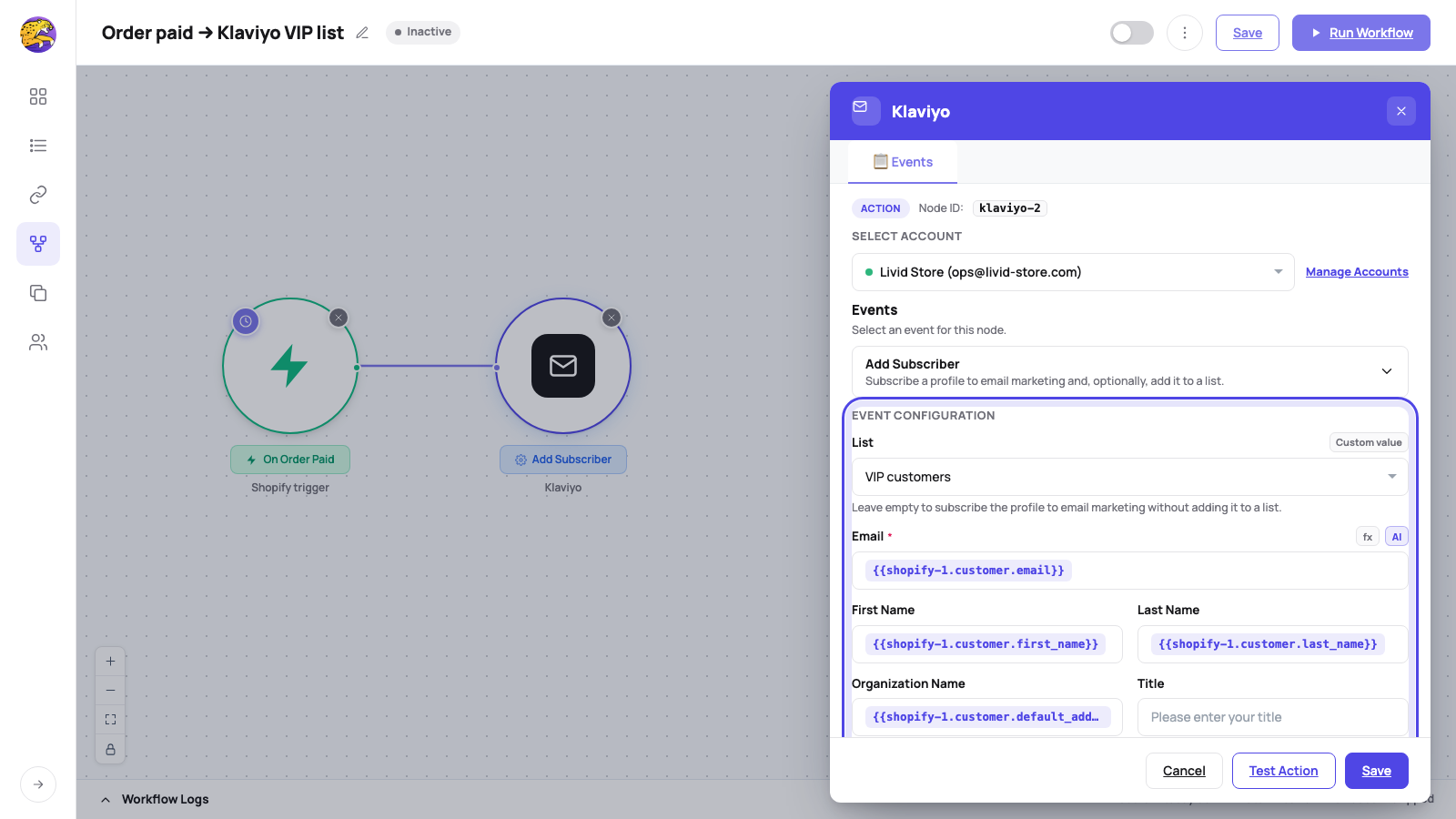
- Add the Klaviyo actionClick Klaviyo in the NODES panel to add an action. Under "Select Account" choose the Klaviyo account, under "Events" choose for example "Add Subscriber", pick the list and map trigger fields (email, first name, last name) with the @ variable picker.
- Save and activateGive the workflow a title, click Save, switch the header toggle to Active.
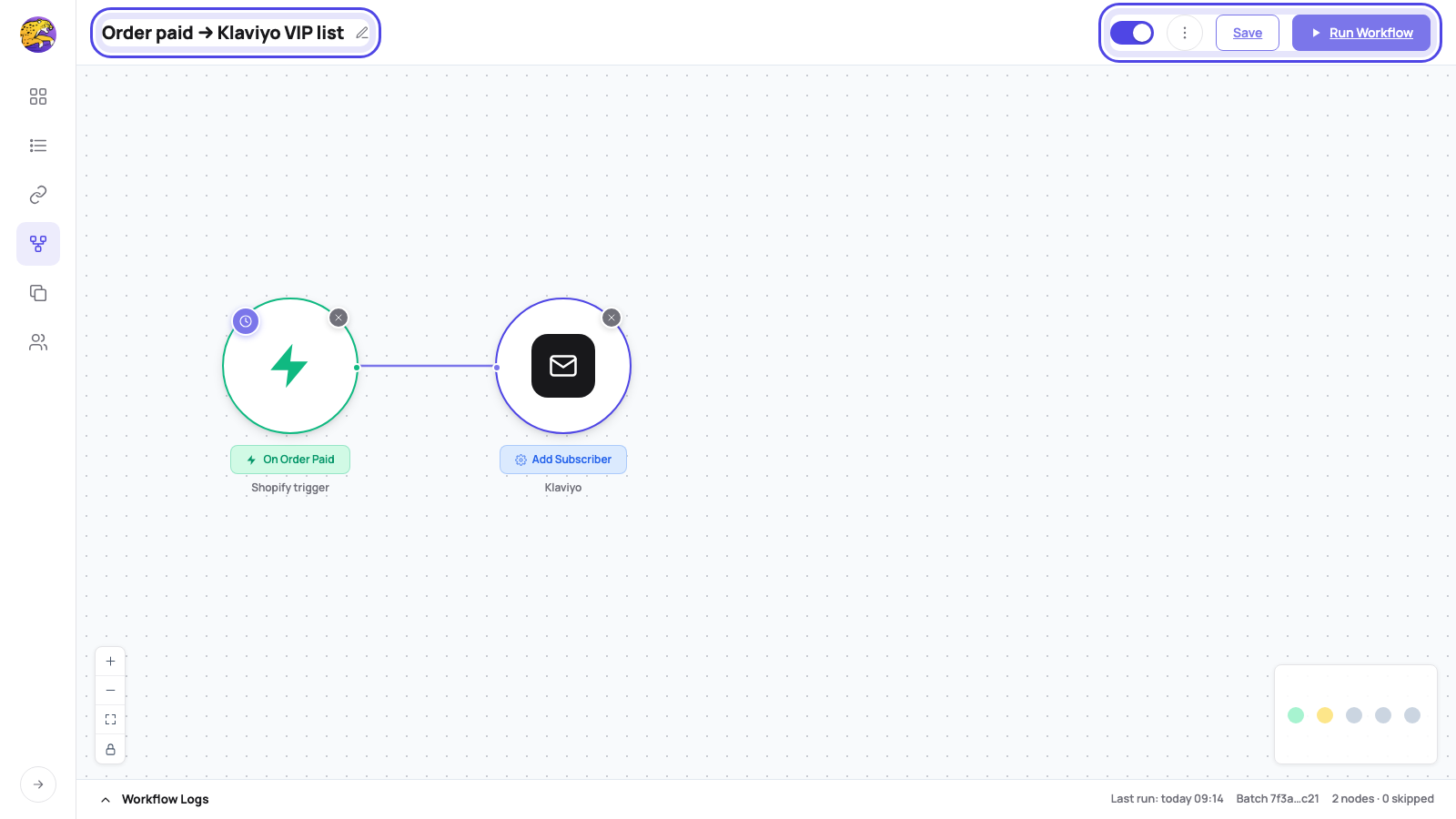
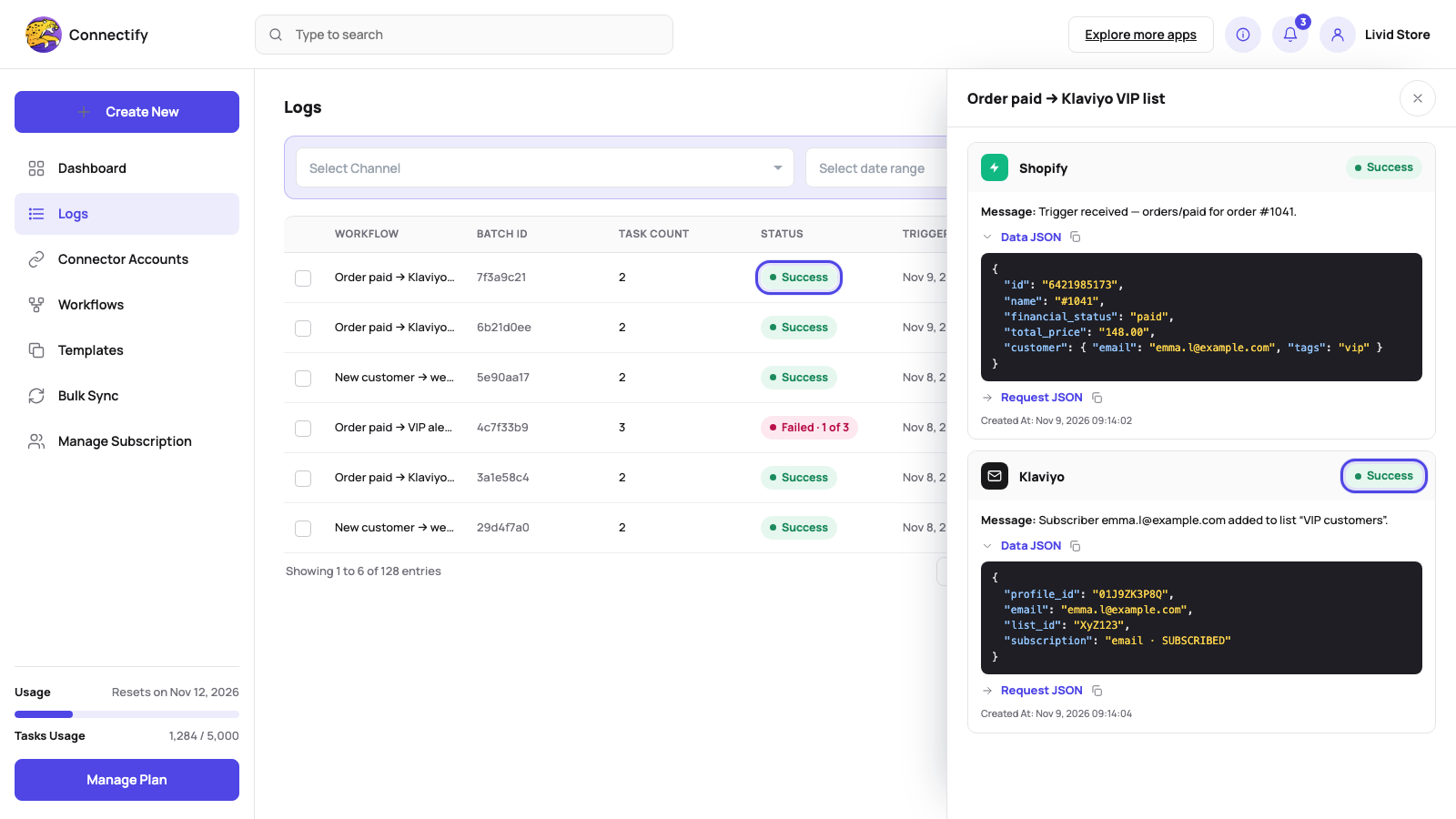
- Run it and check LogsFire the trigger (place a test order). The profile appears in the Klaviyo list within seconds; every run is listed under "Logs".
Permissions and data
What Connectify asks Klaviyo for, and why
Only the access the actions above need. You approve it on the provider's own page when you connect.
- Connectify never creates or sends a campaign. It does not ask for campaigns:write.
- Connectify reads and writes only the Klaviyo lists and profiles your workflow steps name, with the fields you map.
- Your Klaviyo token is encrypted before it is stored and decrypted only while a Klaviyo step runs.
- The data a step receives and returns is kept in run history for 30, 60 or 90 days by plan, then deleted automatically.
Full details in the privacy policy.
- accounts:read
- Read the account name and sender details to label the connected account.
- campaigns:read
- List campaigns for the Get Campaigns action.
- lists:read
- Show your lists so you can pick one, and fetch a list by id.
- lists:write
- Create and rename lists.
- tags:read
- List tags for the Get Tags action.
- profiles:read
- Fetch a profile and list the profiles in a list.
- profiles:write
- Create and update the profile a subscriber step names.
- subscriptions:write
- Subscribe and unsubscribe profiles.
Disconnect
Disconnect Klaviyo
In Connectify go to Connector Accounts > Klaviyo and click the trash icon next to the account. Connectify revokes its token at Klaviyo immediately.
Removing the app from Klaviyo’s own Integrations page also disconnects it. The account then shows "reconnect" in Connectify; connect it again to resume your workflows, or delete the account.
Common problems
Troubleshooting
The account shows "reconnect"
Klaviyo has withdrawn Connectify’s access, usually because the app was removed in Klaviyo or the connection sat unused for 90 days. Open Connector Accounts > Klaviyo, click the account and connect it again. Workflows resume on their next run.
A profile does not appear in the list
Open Logs and find the run. If the Klaviyo step failed, Klaviyo’s message is in the step output. Check that the Email field is mapped and that the step points at the right list. On a double opt-in list the profile is listed only after the person confirms.
The run shows "Rate Limit Issue"
Klaviyo caps how many calls an account may make per minute. Connectify holds the run for the time Klaviyo asks and then continues it; nothing is lost. If it happens often, reduce the number of Klaviyo steps that run at the same time.
Still stuck? Contact support.
FAQ
Klaviyo questions
Is there a Klaviyo trigger?
Not yet. Workflows with Klaviyo start from a Shopify event, from another connected app or from a schedule, and then use Klaviyo actions.
Can I use my own Klaviyo app?
Yes. On the Klaviyo card choose to use your own app and enter its client ID and secret; the connection then runs under your app instead of Connectify’s.
Does Connectify send campaigns?
No. It reads campaigns for the Get Campaigns action and never creates or sends one. The campaigns:write permission is not requested.
Stuck on a Klaviyo step? Write to support@connectify.co or report an issue. Include the workflow name and the run from Logs.


Connect Klaviyo in minutes.
Free plan, no card, 200+ apps. Describe the workflow to Copilot or build it by hand.